
How to make your notes private, actually
Not “private” as in a checkbox in someone’s cloud — private as in: on your disk, behind your lock, encrypted with your machine, and physically unable to leave. Five steps, in order of importance.
Most advice about private notes starts with settings. The honest version starts with architecture: where the notes live, who can open them, and what could carry them away. Settings can be flipped back — by an update, a sign-in, a helpful prompt. Structure can’t. The steps below work through both layers, from the quick wins to the one decision that makes the rest permanent.
The five steps
01Find out where your notes actually live
Privacy starts with an address. If your notes are rows in a company’s database, every promise about them is a policy; if they’re a file on your own disk, the promises are physics. Open your notes app’s settings and ask the blunt question: can I point to the file? If the answer involves the word “cloud”, the rest of this list matters more.
02Turn off the sync you never chose
On a Mac, notes often sync because a checkbox defaulted on, not because you decided. In System Settings → your Apple Account → iCloud, switch Notes off, then enable the “On My Mac” account inside Notes’ own settings so new notes stay local. Just know it’s a toggle — a future sign-in can flip it back, which is why step five exists.
03Lock the screen layer
Whoever sits at your unlocked Mac can read whatever’s open. Apple Notes can lock individual notes — titles and the note list stay visible. Locus locks the whole app instead: App Lock (Settings → Privacy) gates every page, title, and even the menu bar capture behind Touch ID, Apple Watch, or your Mac login password.
04Let FileVault do the encryption
An app lock keeps eyes out while the Mac is running; encryption protects the bytes if the machine itself is lost or taken apart. That job belongs to FileVault (System Settings → Privacy & Security), which encrypts your whole disk — notes, backups, everything — with no per-app ceremony. Turn it on once and stop thinking about it.
05Prefer an app that can’t leak
The strongest privacy setting is the one that doesn’t exist. Locus has no account, cloud sync, analytics, or upload path for your writing. Your workspace is a local database on your Mac with daily local backups; the direct-download build contacts us only for signed updates and an optional license check, and neither ever reads your notes.
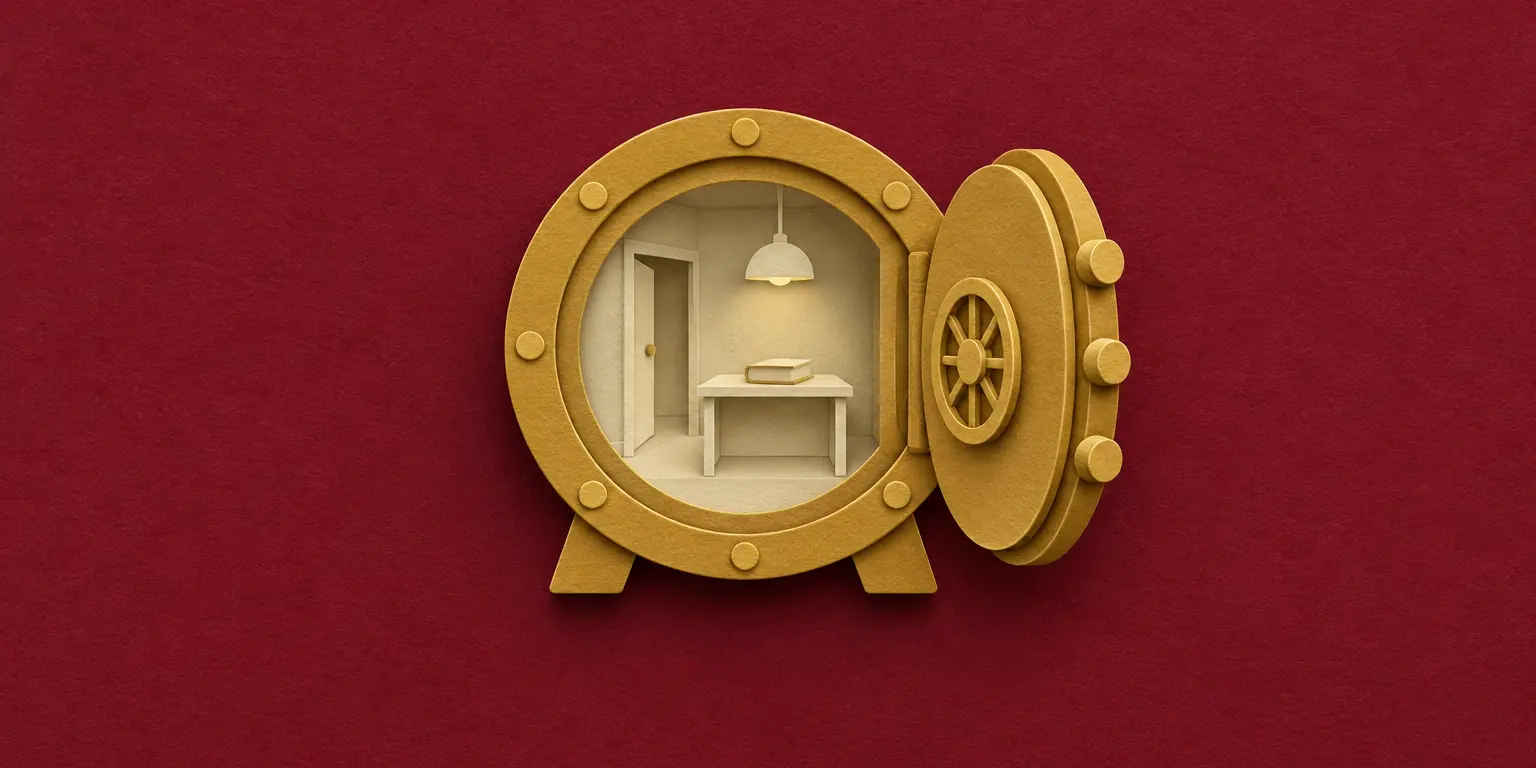
The room and the safe
A useful way to keep the layers straight: the app lock is the room — it decides who can walk in while the lights are on. FileVault is the safe — it protects everything if the whole house is carried off. You want both, and you want them from the parties best placed to provide them: the app for the room, the operating system for the safe. How Locus builds its room is on the notes app with password page; the full checklist for judging any notes app’s privacy is on the private notes app page; and the philosophy underneath both is local-first notes.
Questions people ask
Can I make my notes private without installing anything?
Mostly, yes: turn iCloud sync for Notes off, use Apple Notes’ per-note lock for sensitive pages, and enable FileVault. The gap that remains is the app level — nothing locks the Notes app itself, and your note titles stay visible to anyone at the keyboard. That app-wide lock is what a tool like Locus adds.
Is a locked note the same as an encrypted note?
Not necessarily, and it’s worth keeping the ideas separate. A lock is access control: who can open this while the machine is on. Encryption protects the data at rest. Apple Notes encrypts the body of a locked note; in many other apps a “lock” is only a gate. Locus states its split plainly: App Lock controls access, and encryption at rest is FileVault’s job, covering the whole disk.
What about notes I’ve already synced to a cloud?
Turning sync off stops future uploads; it doesn’t unring the bell for what’s already on a server. Export what matters, delete it from the synced service, and give the provider’s retention window time to lapse. Then keep the next decade of notes somewhere that never syncs in the first place.
Do I need to encrypt individual notes?
On a single-user Mac with FileVault on, per-note encryption adds little — the disk is already encrypted, and an app lock covers the shoulder-surfing case. Per-note encryption starts to matter when notes live in someone else’s cloud, which is the situation this page is helping you leave.
What’s the most private setup, honestly?
Local file, FileVault on, app lock for the room, no account anywhere in the chain. On a Mac that means Apple Notes with iCloud off — or Locus, which adds the block editor, backlinks, and Markdown export of the whole workspace, while keeping the same no-account, no-cloud answer.
How do I secure Notes on a Mac?
Four layers, in order of effort: turn off iCloud sync for notes you want local-only; lock the screen layer (a password on the Mac, auto-lock when idle); turn on FileVault so everything on disk is encrypted at rest; and for the notes themselves, use locked notes in Apple Notes or an app with its own lock, like Locus’s App Lock via Touch ID. The five steps above walk through each.
Is there an encrypted place for your notes on a Mac?
Yes — two honest ones. FileVault encrypts the whole disk at rest, covering every notes app automatically; it’s the strongest layer most people never turn on. Within apps, Apple Notes’ locked notes are individually encrypted. Be wary of apps that merely say ‘secure’: a lock screen controls access, but encryption is what protects the bytes — know which one you’re getting.